Glosting
  • 0 Shopping Cart
  • Home
  • Store
    • Browse All
    • Windows Shared Hosting
    • Shared Hosting - India
    • SSL Certificates
    • Website Security
    • Register a New Domain
    • Transfer Domains to Us
  • Announcements
  • Knowledgebase
  • Network Status
  • Contact Us
  • More
  • Account
    • Login
    • Register
    • Forgot Password?
  1. Portal Home
  2. Knowledgebase
  3. Hosting FAQ
  4. cPanel
  5. How do I see how much disk space I am using?

  Categories

22
Hosting FAQ

  Categories

  Tag Cloud

backup jetbackup

  Support

  My Support Tickets   Announcements   Knowledgebase   Downloads   Network Status   Open Ticket

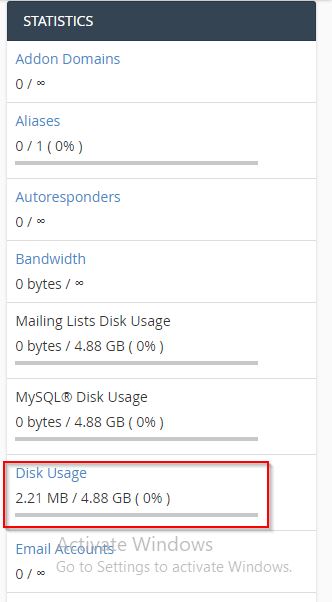
How do I see how much disk space I am using? Print

  • 0

1. Login to cPanel.

2. Locate the “Statistics” column on the right of the page and find the row labeled “Disk Usage”. This shows you how much disk space you are using, and how much you are allowed to use.

Was this answer helpful?

Related Articles

How To Install Let’s Encrypt SSL Certificates In order to install Let’s Encrypt SSL Certificate for your domain, do following steps: 1. Login... Send Email From a PHP Script Using SMTP It is recommended to use SMTP authentication for sending emails.  If you are not using any CMS OR... How to connect to FTP server using FileZilla To connect to FTP server, follow below steps 1. Open FileZilla and from File Menu open Site... How to change cPanel password cPanel allows you to change the password of your cPanel account. To do so, please follow the... How to change cPanel language 1 Login to cPanel. 2. Scroll down and click on Change Language from Preferences section. 3....
« Back

  Tag Cloud

backup jetbackup

  Support

  My Support Tickets   Announcements   Knowledgebase   Downloads   Network Status   Open Ticket
  • Contact Us
  • Terms of Service

Copyright © 2025 Glosting. All Rights Reserved.


Loading...
Loading...
Choose language
العربية
Azerbaijani
Català
中文
Hrvatski
Čeština
Dansk
Nederlands
English
Estonian
Persian
Français
Deutsch
עברית
Magyar
Italiano
Macedonian
Norwegian
Português
Português
Română
Русский
Español
Svenska
Türkçe
Українська

Choose Currency

Rs. INR
$ USD

Generate Password

Please enter a number between 8 and 64 for the password length